



I approached Incognito Browser - Go Private as a practical communication app rather than just another way to open websites. Its main value is giving me a separate, privacy-focused place to browse, with ad-blocking included in the experience. That sounds simple, but the difference becomes noticeable when I want to check something quickly without mixing it with my regular browser history, saved sessions, or everyday tabs.
It is a free app from CoinCircle, Inc., aimed at Everyone, and it has built a sizeable audience: over five million installs, a 4.7 average from around sixty-seven thousand ratings, and roughly two and a half thousand written reviews. Those numbers suggest that the basic idea is easy for many people to understand. My experience was more nuanced: the app is straightforward once I treat it as a focused private browsing tool, but it is not automatically the best replacement for a full-featured primary browser.
Where the browsing experience can get stuck
The first point of friction is expectation. The word “incognito” often makes people think every part of online privacy is handled automatically. I would not use it with that assumption. It is useful for keeping a browsing session separate from the normal browser on my phone, but private browsing does not make me invisible to every website, network, or service I contact. That distinction matters especially when I am using public Wi-Fi or opening a page that asks me to sign in.
I also found that some websites are simply less cooperative in a privacy-oriented browser. Pages built around aggressive advertising, unusual scripts, embedded sign-in windows, or browser-specific behavior may load differently when ad-blocking is active. A blank area, a missing button, or a page that keeps refreshing does not necessarily mean the app is broken. Sometimes the website expects advertising components or tracking scripts to be present before it completes its layout.
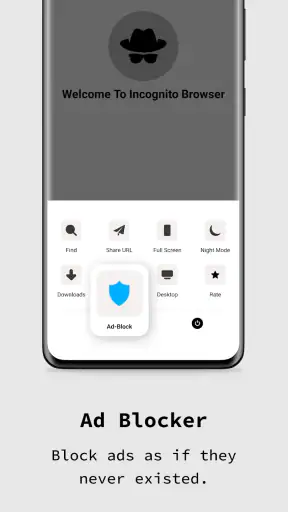
That is where this app’s strongest feature can also become its most visible source of friction. Ad-blocking makes pages calmer and can reduce distractions, but it may affect websites that depend on advertising code for navigation or access. I prefer that trade-off for ordinary reading and quick searches, although I would not be surprised if I occasionally needed to use another browser for a difficult site.
Another common sticking point is session confusion. If I open a page in Incognito Browser and later look for it in my usual browser, I may assume the page disappeared. In reality, I had simply used a separate browsing environment. The same applies in reverse: a login or open tab in my regular browser is not automatically part of the private session here. Keeping that separation in mind prevents a lot of unnecessary troubleshooting.
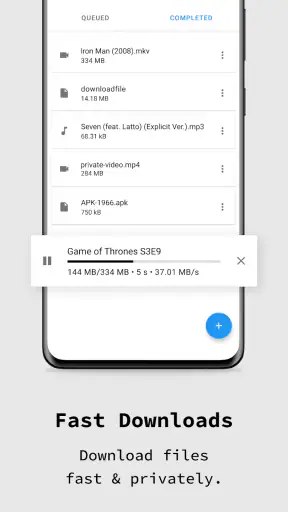
Downloads and handoffs can also feel less obvious than in a standard browser. When I want to save something, open it in another app, or share a page through a messaging service, I need to pay attention to the phone’s normal share and open-with choices. The browser can be perfectly functional while the next app in the chain is the part that refuses the file, blocks the format, or requires its own permission.
What I check before blaming the app
My first check is the connection itself. I try another ordinary website and, if possible, switch between mobile data and Wi-Fi. If every browser struggles, the problem is probably the network, a captive portal, or a temporary service issue rather than this particular app. On public networks, I also make sure the connection has completed its sign-in page before testing private browsing.
Next, I look at the address I entered. A small typo, an outdated page, or a link that only works after a referral step can look exactly like a browser failure. I also try the site’s main address instead of a deep link copied from a message. This is especially useful when a link contains a temporary session token that has already expired.
When a page appears incomplete, I test a simpler page and then return to the original. If the simpler page works, I treat the issue as a compatibility problem first. I may reload once, close the current session, or try the same destination in my normal browser to compare behavior. I avoid repeatedly tapping refresh because some sites interpret that as several separate requests and make the situation harder to read.
The phone itself deserves a quick inspection. I check whether the device is running a compatible Android release, since the app supports Android 5.0 and later, and I make sure there is enough free storage for ordinary browser activity. I also check whether the operating system is restricting background behavior or whether another security tool is filtering connections. Those checks are more useful than immediately uninstalling and reinstalling.
The current version is 717, so I would also look for an available app update through the normal store before spending time on deeper fixes. An update can resolve general compatibility problems, but I would not assume that every site-specific issue requires one. If only a single page fails, the website remains the more likely explanation.
A setup routine that saves time
My preferred setup is deliberately small. I install the app, open a harmless page, search for a familiar topic, and confirm that ordinary navigation works before relying on it for something important. This gives me a baseline. If a banking page, work portal, or travel form later behaves strangely, I know whether the problem is new or was present from the beginning.
I also decide what role the app will play. For me, it works best as a separate private browsing workspace for quick searches, sensitive-but-routine reading, and links I do not want mixed into my main browsing habits. I do not treat it as a complete replacement for every browser on my phone. That decision prevents disappointment and makes the app easier to use.
When I need to sign in, I check whether I actually want the account attached to that session. Private browsing is convenient for keeping temporary activity separate, but it can be inconvenient when I expect a service to remember preferences, saved items, or an unfinished form. If continuity matters more than separation, my regular browser is usually the better choice.
A useful habit is to keep a recovery path. If I am filling out a long form or reading something important, I copy essential text or save the relevant information in a permitted way before closing the session. I do not assume that a private tab will preserve my place. The very separation that protects a cleaner session can also mean less continuity when I leave it.
I would not install it expecting a complicated configuration process. Its appeal is the directness of opening a private browser and getting on with the task. Still, “simple” does not mean that every website will behave identically. The best setup is less about changing many settings and more about understanding when to use this browser and when to switch tools.
Recovering a workflow without losing the task
When a page stalls, I use a short recovery sequence rather than making several changes at once. First I check the connection, then reload once, then try the site’s home page. If the page still fails, I open the same destination in another browser. This comparison tells me whether the issue follows the website or stays with Incognito Browser.
If the page works elsewhere, I decide whether the missing content is worth the privacy and ad-blocking trade-off. For a news article or ordinary reference page, I may simply continue in the other browser. For a quick search or a page full of intrusive advertising, I usually stay with this app and accept that one troublesome site is not worth changing my entire browsing routine.
For sign-in problems, I start again from the service’s main login page instead of using a saved deep link. I check that the keyboard has entered the correct details and that the site is not waiting for a separate verification window. If the login succeeds in the regular browser but not here, that points toward a site compatibility issue or a session requirement rather than a general account problem.
When a link from a message does not open correctly, I copy the address and paste it into a fresh session. This removes the possibility that the messaging app is handing off a shortened or partially formatted link. It is a small step, but it has helped me distinguish a broken handoff from a browser problem.
For downloads, I verify the file type and then use the phone’s normal file-opening or sharing choices. If another app cannot open the result, I test a different compatible app before concluding that the browser failed. A browser can retrieve content successfully while the receiving application rejects it because of its own format or access rules.
Closing and reopening the app is a reasonable final light-touch step when navigation becomes unresponsive. I would avoid clearing app storage casually, because that can remove local session information and force me to start again. Reinstallation is even less attractive as a first response: it takes time and may erase the very context I am trying to recover.
When the app is not the cause
Some failures happen outside the browser. A website may be offline, overloaded, region-restricted, or deliberately blocking certain browsing environments. A network may intercept traffic until I accept terms. A work or school connection may apply its own filtering. In each case, changing browsers can alter the symptom without fixing the underlying condition.
Ad-blocking can also expose a website’s dependency on advertising technology. If a page displays a warning asking me to disable blocking, that is a policy choice made by the site, not proof that the browser cannot display normal web content. I then choose based on the page’s importance. I may use another browser for a one-time essential task, but I do not disable a privacy preference automatically just because a site requests it.
Account security creates another layer. If a service sends a verification code, rejects a new session, or asks for additional confirmation, the browser may only be the place where the message appears. I check the account’s own security prompts and use the service’s official recovery process rather than repeatedly retrying the login.
Phone settings can interfere too. Battery controls, network filters, outdated system components, or a nearly full device can produce slow loading and failed handoffs. If other apps show similar symptoms, I investigate the phone or connection first. This is particularly important on older devices that meet the Android requirement but may still have limited resources for modern, script-heavy pages.
Privacy expectations should be realistic as well. I like using a private browser to separate local browsing habits from my normal browser, but I would not use it as a substitute for careful account practices, secure connections, or awareness of the network I am using. The app helps with one layer of privacy; it does not remove the need for sensible online behavior.
Who gets the most from this browser
I think it suits people who want a quick, free way to browse without sending every temporary search into their main browser routine. It is also useful when I am researching a gift, checking a shared device, comparing results without existing browser personalization, or opening links that I do not want mixed with my everyday tabs.
The ad-blocking angle makes it appealing for readers who find busy pages tiring. A cleaner page can make it easier to focus on an article, product detail, or reference entry. The benefit is not just visual neatness: fewer distractions can make a short task feel more controlled, especially when I am browsing from a phone screen.
I would be more cautious recommending it as the only browser for someone who depends on synchronized bookmarks, long-running sessions, complex web applications, or seamless account continuity. Those users may prefer their established browser because its broader ecosystem matters more than a separate private workspace.
It is also not the right choice for someone who expects every privacy concern to disappear with one installation. If the main goal is advanced anonymity, specialized network protection, or detailed privacy controls, I would compare dedicated tools designed around those needs rather than assuming an incognito browser covers everything.
How it compares with a regular browser
Compared with the usual browser already installed on a phone, this app feels more purpose-built for temporary browsing. The advantage is mental and practical separation: I can open it for a task without first sorting through my normal tabs. Its ad-blocking focus can also make certain pages more pleasant than they are in a conventional browser.
The regular browser usually wins when I need continuity. Saved passwords, synchronized tabs, bookmarks, account history, and compatibility with complicated websites can make everyday work faster. If I am managing several web services throughout the day, moving between a private browser and my primary browser may create more friction than it removes.
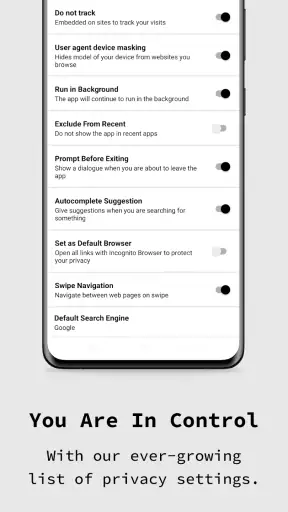
Compared with a privacy browser that offers a wider set of controls, Incognito Browser - Go Private is easier to approach but less suitable for users who want to fine-tune every part of their browsing setup. I see that as a trade-off rather than a flaw. Its strength is the focused workflow, not an invitation to spend time configuring a large privacy dashboard.
In a realistic example, I might receive a link in a group chat to a product page and want to check it without filling my normal browser with related searches. I open the link here, read the page with fewer advertising distractions, and close the session when finished. If the retailer’s checkout fails or asks for a sign-in flow that does not cooperate, I move that specific task to my regular browser instead of treating the first browser as unusable.
My practical verdict
After using it as a focused tool, I would recommend Incognito Browser - Go Private to anyone who wants a free, uncomplicated private browsing option with ad-blocking at its center. The app is especially convincing for short sessions, temporary research, shared-device situations, and people who want a cleaner alternative to opening every link in their main browser.
Its limitations are important but manageable. Some websites may not behave perfectly, private sessions are not the same as total online anonymity, and users who rely heavily on synchronization may find the separation inconvenient. I would keep a regular browser available for complex logins, long forms, saved workflows, and sites that depend on advertising or unusual scripts.
The developer, CoinCircle, Inc., has kept the concept easy to understand, and the app’s broad adoption reflects that accessibility. With its release on September 6, 2017, and continued availability for Android 5.0 and later, it is not a brand-new experiment; it is a mature option for a specific browsing habit. The fact that it is free lowers the barrier to trying it without committing to a subscription.
My final advice is to use it intentionally: choose it when separation and a less cluttered page matter, test important websites before depending on them, and switch browsers when continuity or compatibility becomes more valuable. It is best viewed as a practical second browser, not a universal replacement. Used that way, it delivers a useful balance of convenience, privacy-minded browsing, and fewer distractions without promising more than a browser can realistically provide.


